Create ECR Repository and EKS Cluster
ECR Repository
Create ECR Repository using AWS CLI
aws ecr create-repository --repository-name shopnow/shopnow-frontend --region ap-southeast-1
aws ecr create-repository --repository-name shopnow/shopnow-config-server --region ap-southeast-1
aws ecr create-repository --repository-name shopnow/shopnow-discovery-server --region ap-southeast-1
aws ecr create-repository --repository-name shopnow/shopnow-product-service --region ap-southeast-1
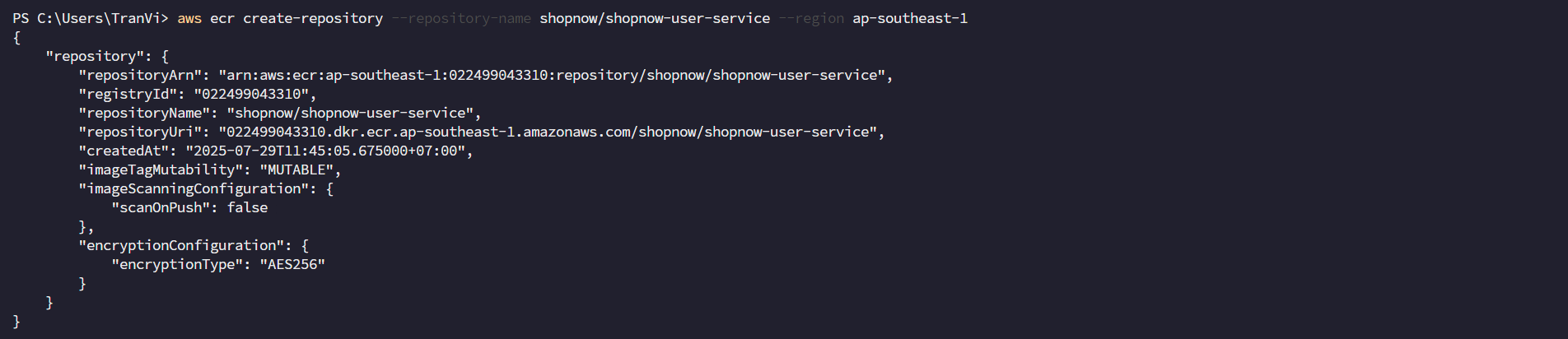
aws ecr create-repository --repository-name shopnow/shopnow-user-service --region ap-southeast-1
aws ecr create-repository --repository-name shopnow/shopnow-shopping-cart-service --region ap-southeast-1
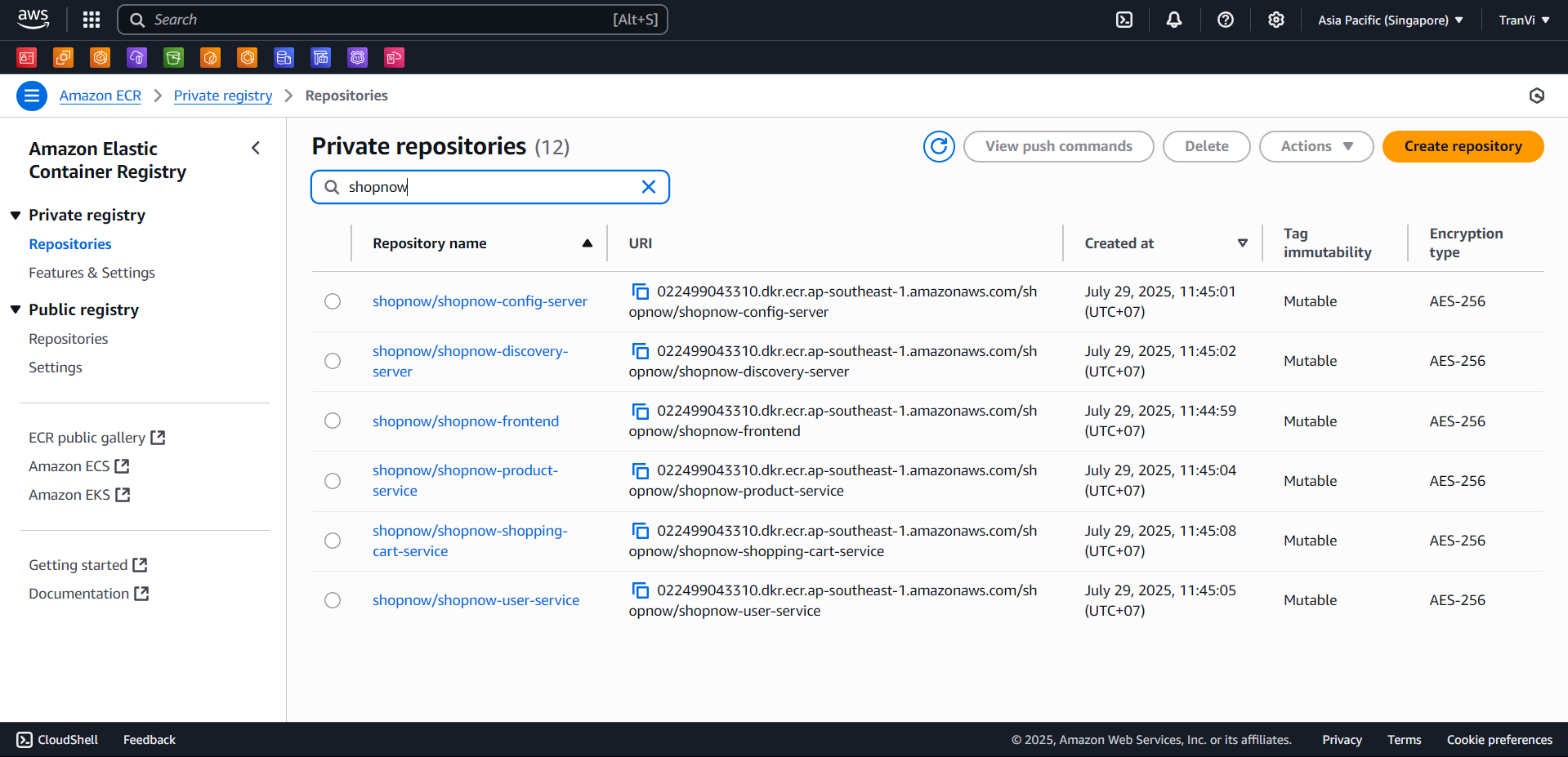
After successful creation, you will get the following result:
EKS Cluster
Next, we will create EKS Cluster using eksctl.
eksctl create cluster --name workshop-2-cluster --region ap-southeast-1 --without-nodegroup
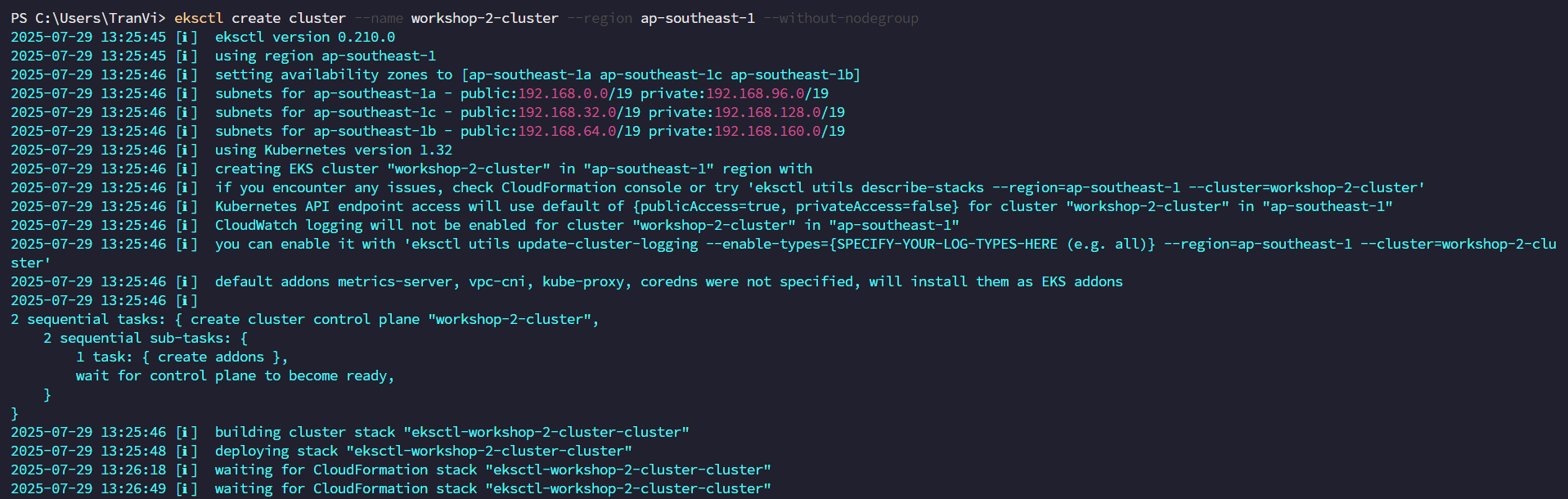
eksctl will proceed to create a CloudFormation Stack to create the EKS Cluster.
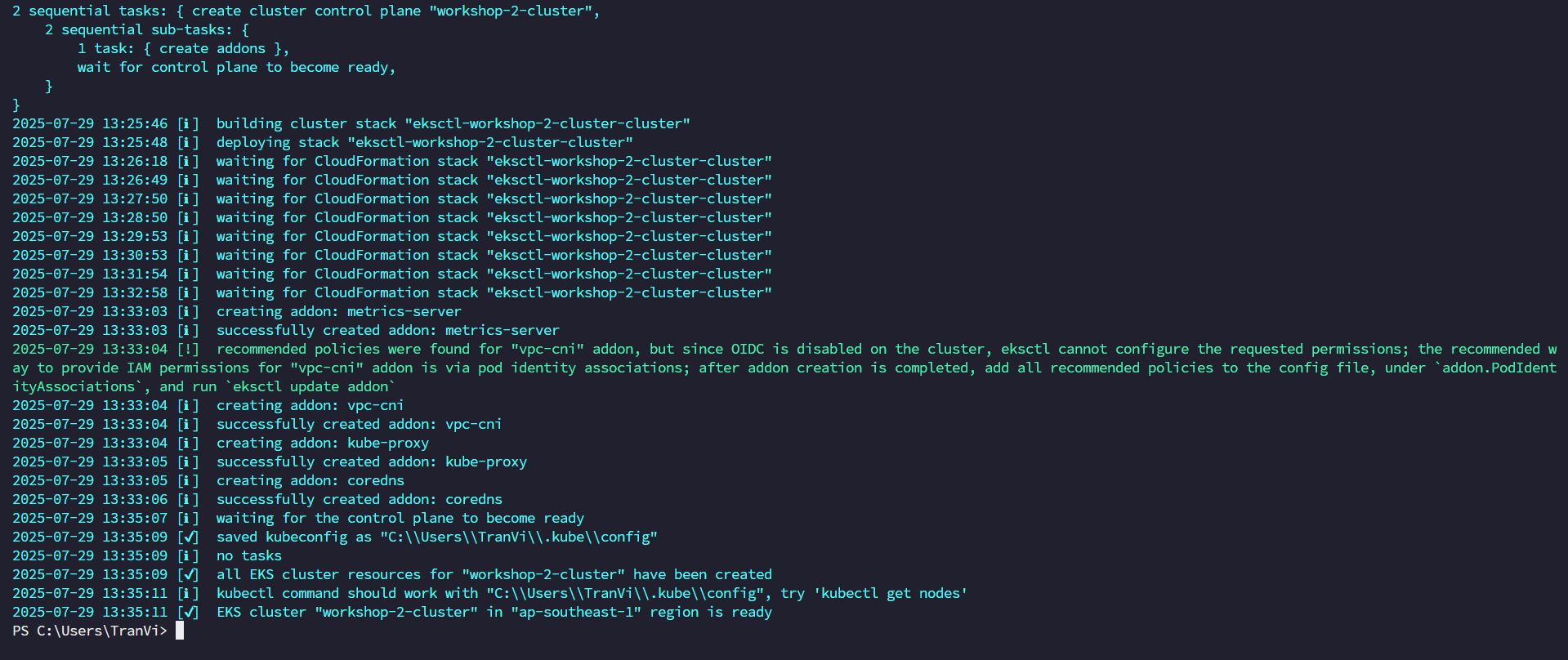
To be able to access the EKS Cluster, we need to update kubeconfig.
aws eks update-kubeconfig --name workshop-2-cluster --region ap-southeast-1

kubectl config get-contexts
kubectl cluster-info

kubectl get nodes

Here we see the Cluster doesn’t have nodes yet, we will create node group using eksctl. Besides creating node group using eksctl cli, we can configure a yaml file to create node group ensuring it’s more visual.
eksctl create nodegroup \
--cluster=workshop-2-cluster \
--region=ap-southeast-1 \
--name=workshop-2-node-group \
--node-type=t3.large \
--nodes=2 \
--nodes-min=1 \
--nodes-max=4 \
--node-volume-size=20 \
--node-volume-type=gp3 \
--node-private-networking \
--managed \
--enable-ssm \
--ssh-access=false
Configure yaml file to create node group.
apiVersion: eksctl.io/v1alpha5
kind: ClusterConfig

metadata:
  name: workshop-2-cluster
  region: ap-southeast-1
  version: "1.32"

vpc:
  cidr: "192.168.0.0/16"
  nat:
    gateway: Single

managedNodeGroups:
  - name: workshop-2-node-group
    instanceType: t3.large
    desiredCapacity: 3
    minSize: 3
    maxSize: 6

    volumeSize: 20
    volumeType: gp3
    volumeIOPS: 3000
    volumeThroughput: 125
    volumeEncrypted: true

    privateNetworking: true

    availabilityZones: ["ap-southeast-1a", "ap-southeast-1b", "ap-southeast-1c"]

    ssh:
      allow: false
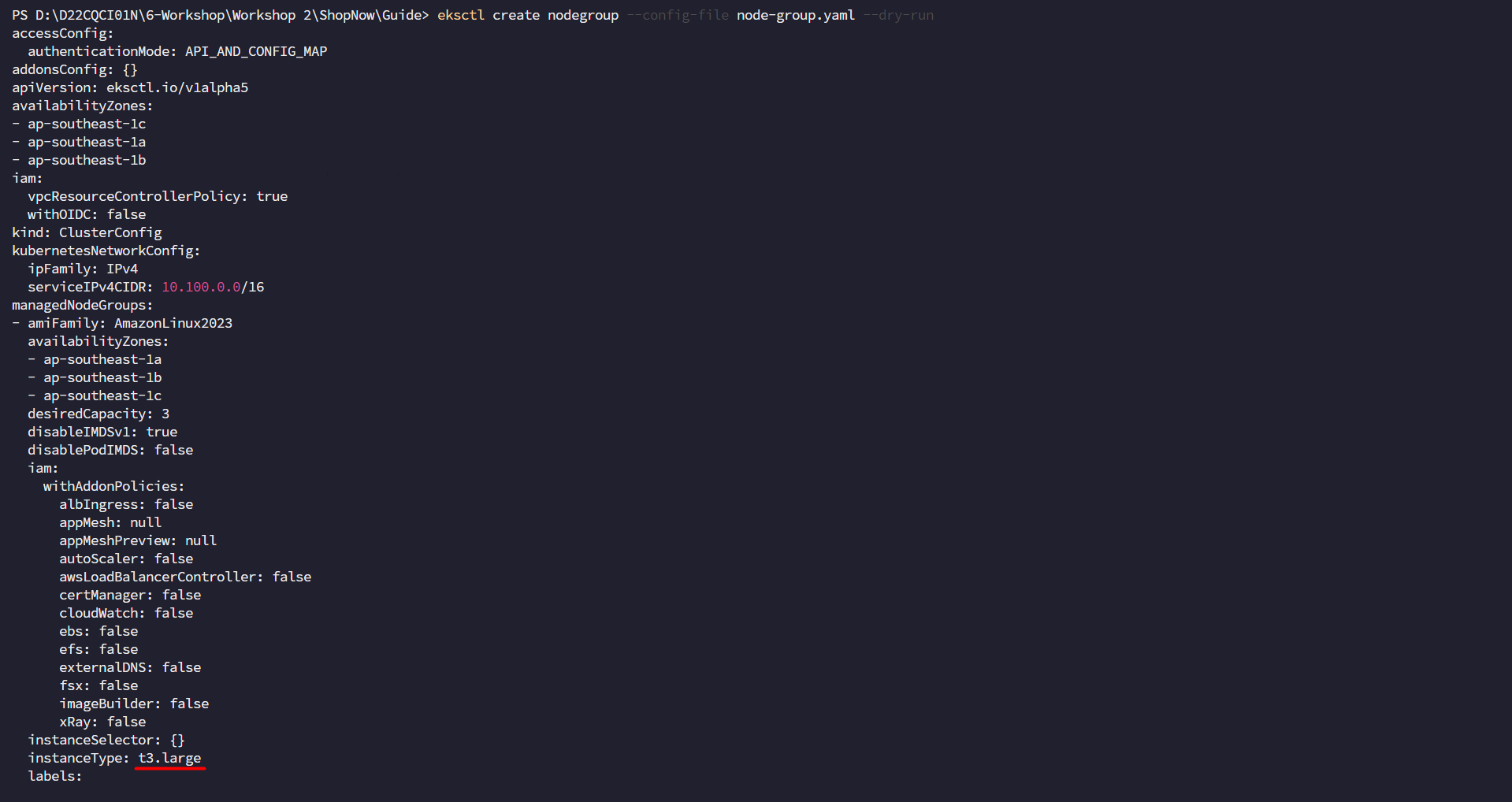
Check if the yaml configuration file has been created successfully or not.
eksctl create nodegroup --config-file node-group.yaml --dry-run
Proceed to apply the yaml configuration file.
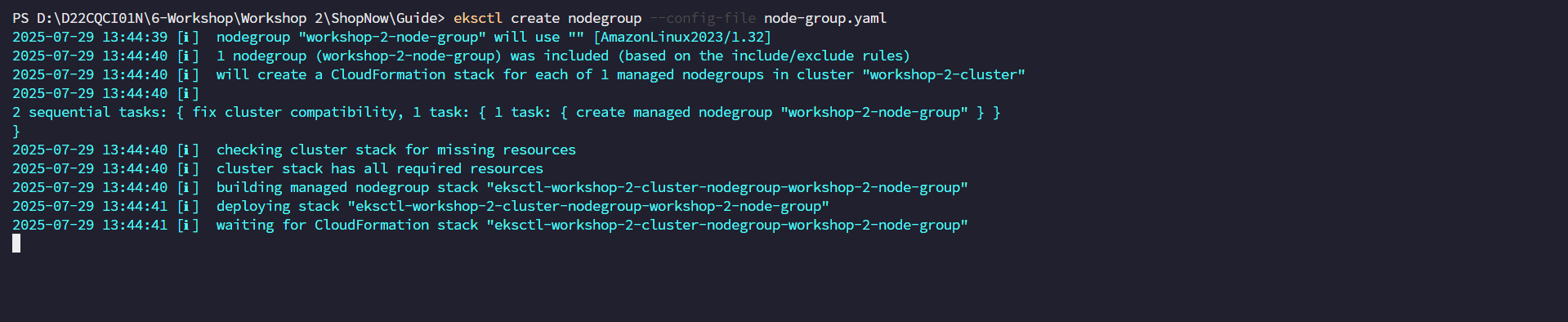
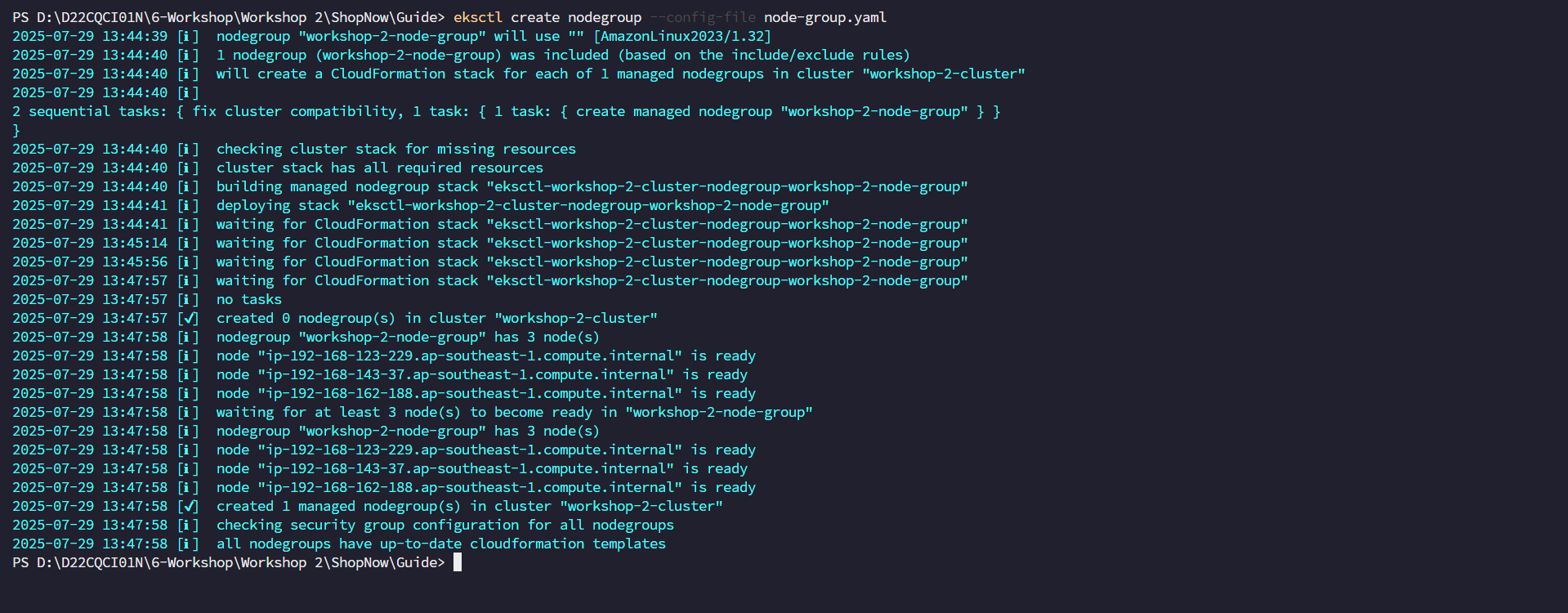
eksctl create nodegroup --config-file node-group.yaml
Similar to creating the Cluster, eksctl also proceeds to create a CloudFormation Stack to create the node group.
Check if the node group has been created successfully or not.
eksctl get nodegroup --cluster workshop-2-cluster --region ap-southeast-1

kubectl get nodes

Thus we have successfully created the EKS Cluster and the nodes have been initialized successfully.