Install AWS CLI and eksctl
Install AWS CLI
We will install AWS CLI on different platforms:
Linux
curl "https://awscli.amazonaws.com/awscli-exe-linux-x86_64-2.0.30.zip" -o "awscliv2.zip"
unzip awscliv2.zip
sudo ./aws/install
MacOS
sudo ln -s /folder/installed/aws-cli/aws /usr/local/bin/aws
sudo ln -s /folder/installed/aws-cli/aws_completer /usr/local/bin/aws_completer
Windows
msiexec.exe /i https://awscli.amazonaws.com/AWSCLIV2.msi
After successful installation, we can check with the command:
aws --version

Install eksctl
Next, we will install eksctl to create and manage EKS Cluster.
Linux/Unix
# for ARM systems, set ARCH to: `arm64`, `armv6` or `armv7`
ARCH=amd64
PLATFORM=$(uname -s)_$ARCH

curl -sLO "https://github.com/eksctl-io/eksctl/releases/latest/download/eksctl_$PLATFORM.tar.gz"

# (Optional) Verify checksum
curl -sL "https://github.com/eksctl-io/eksctl/releases/latest/download/eksctl_checksums.txt" | grep $PLATFORM | sha256sum --check

tar -xzf eksctl_$PLATFORM.tar.gz -C /tmp && rm eksctl_$PLATFORM.tar.gz

sudo install -m 0755 /tmp/eksctl /usr/local/bin && rm /tmp/eksctl
MacOS
brew tap weaveworks/tap
brew install weaveworks/tap/eksctl
Windows
choco install eksctl
After successful installation, we can check with the command:
eksctl version

To be able to execute eksctl commands, we need to configure AWS CLI with Access Key and Secret Key of the User on AWS, so we need to create a new User and grant AdministratorAccess permission (Not recommended to use this permission in practice) for that User.
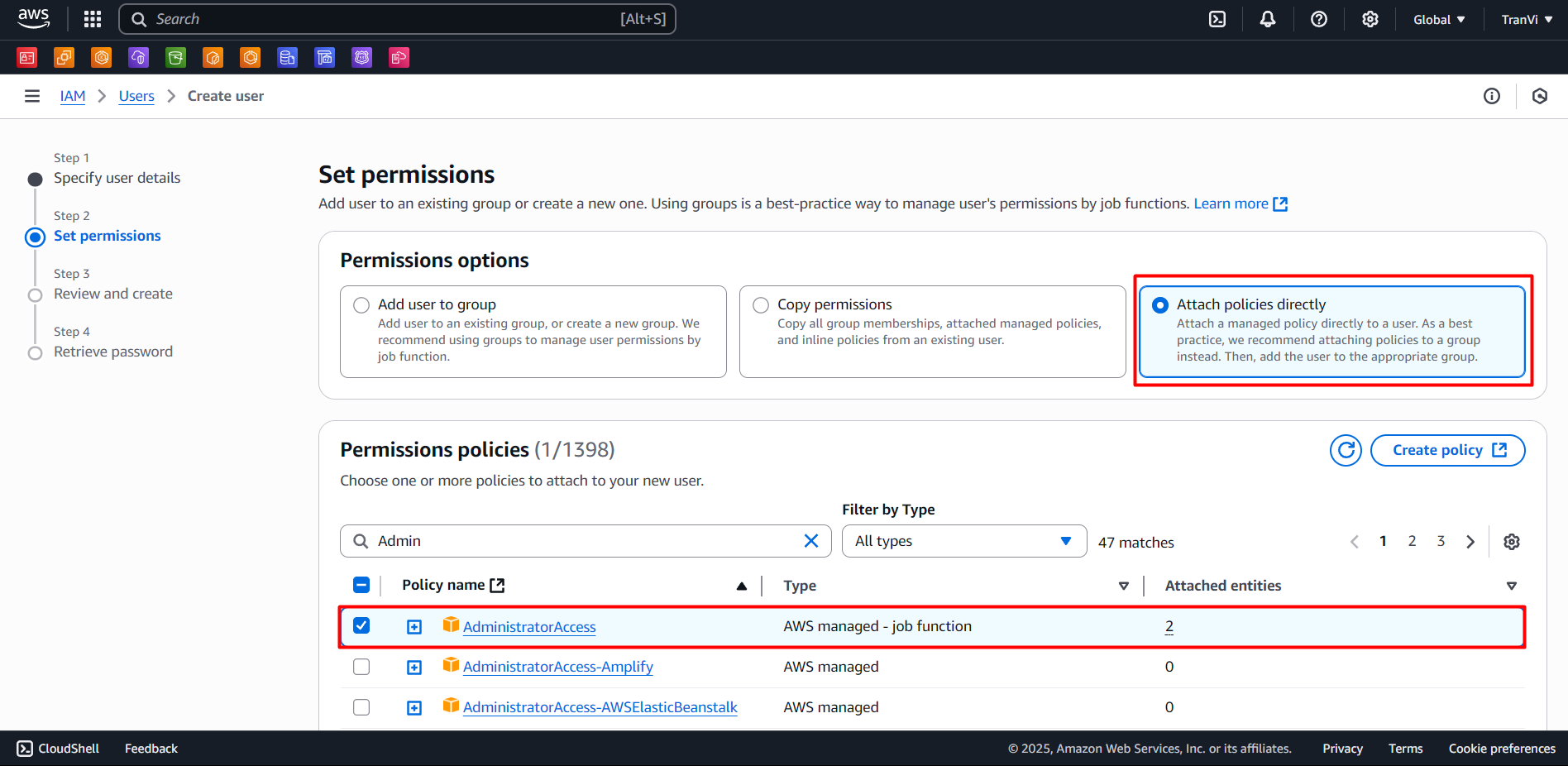
First, access the IAM Console, create a new User and grant AdministratorAccess permission.
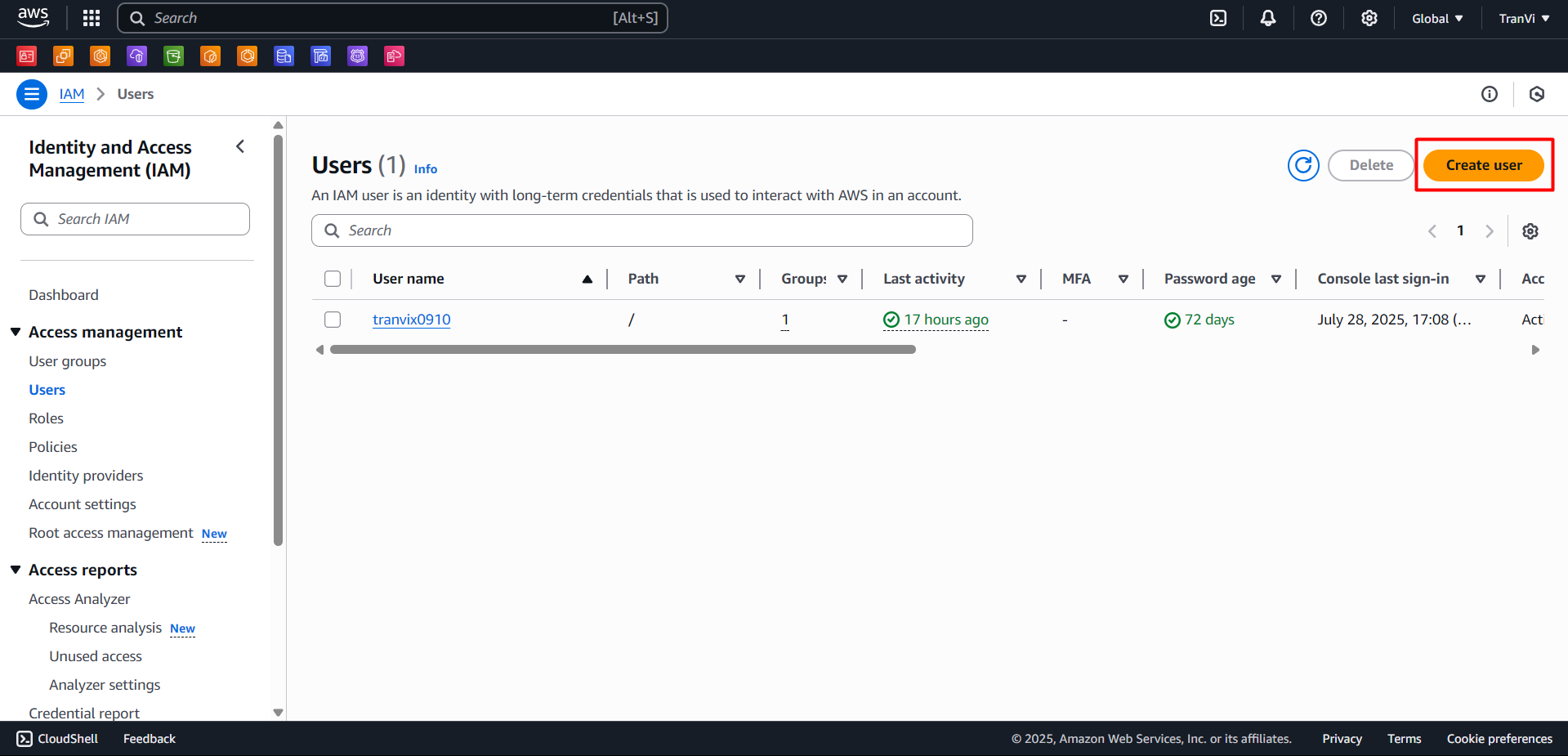
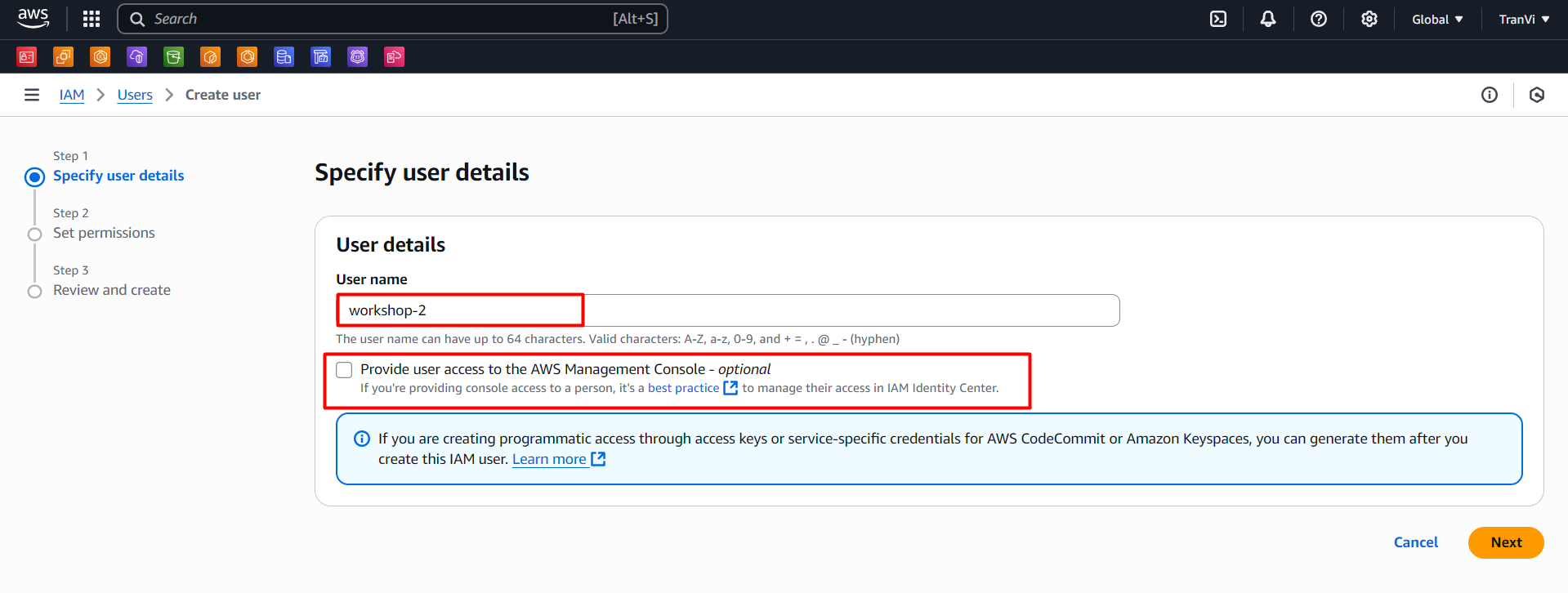
Tick select Provide user access to the AWS Management Console to be able to create custom password for the User.
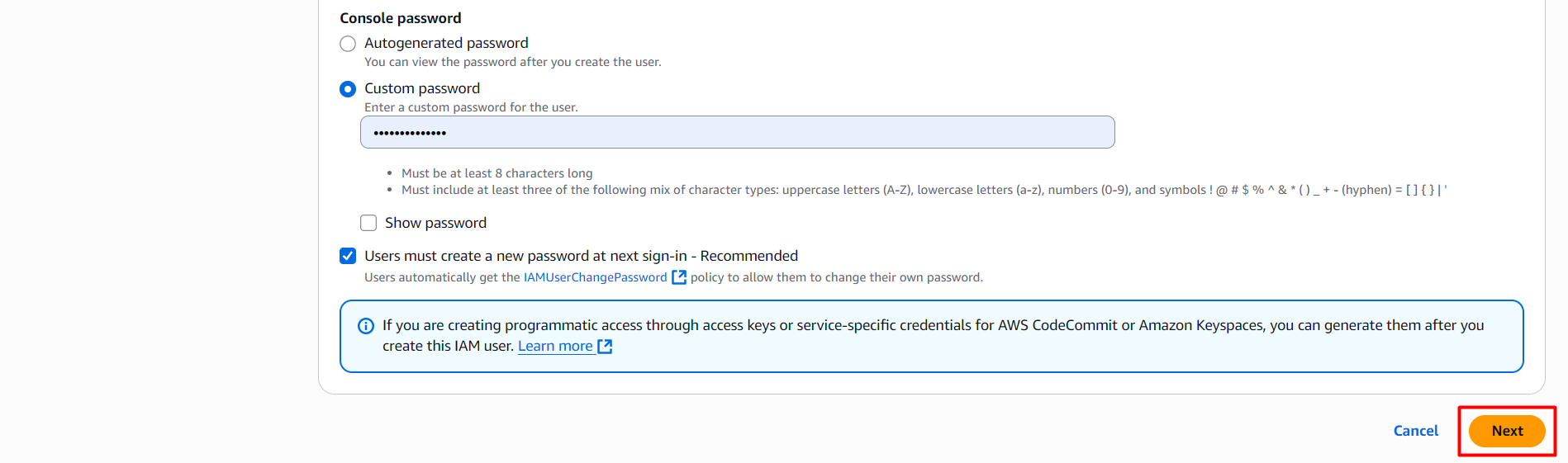
Then click Next to go to the Add user to group section, if you have a pre-created Group, you can select that Group, if not you can assign permissions directly to that User in the Attach policies directly section.
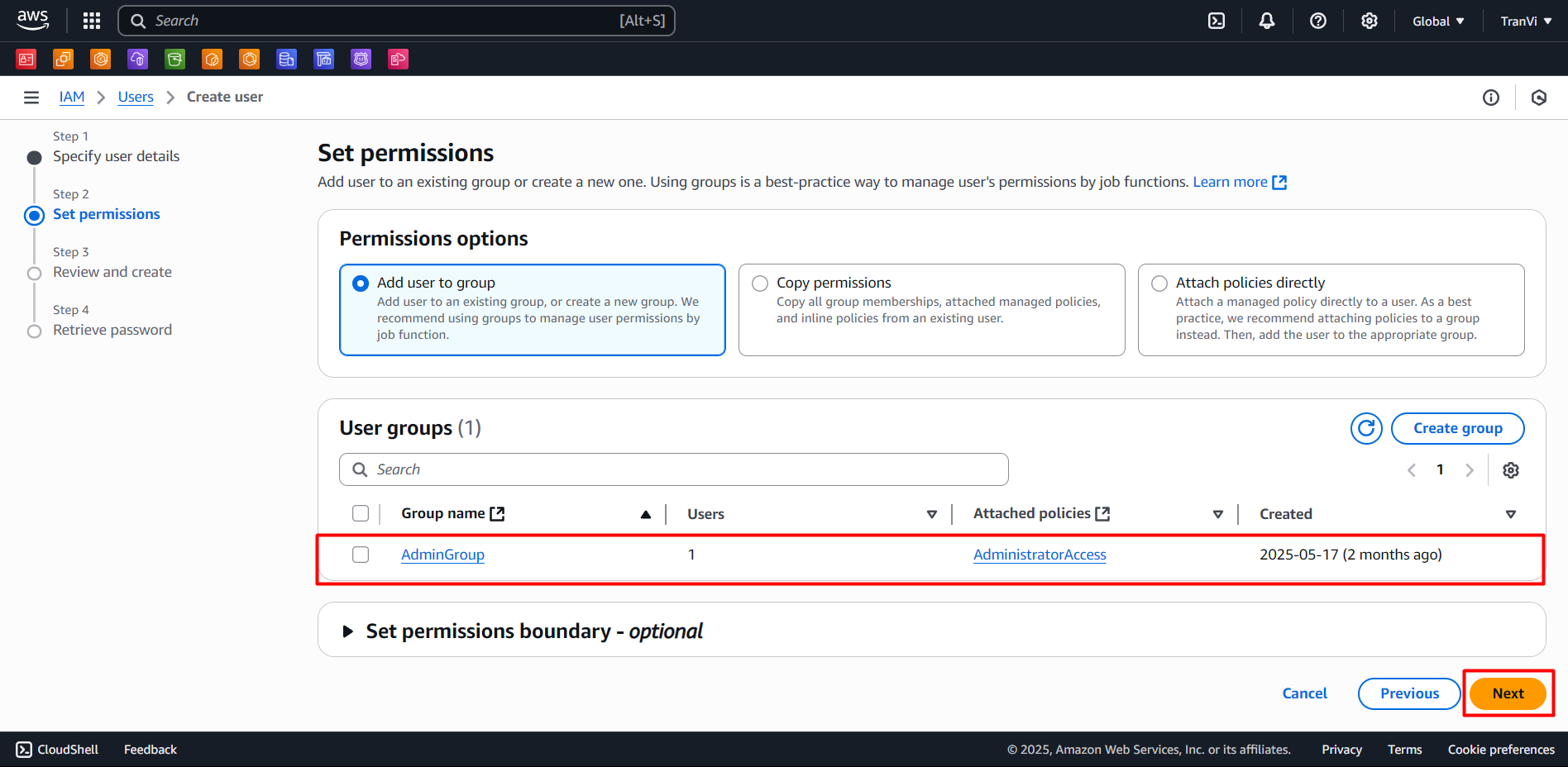
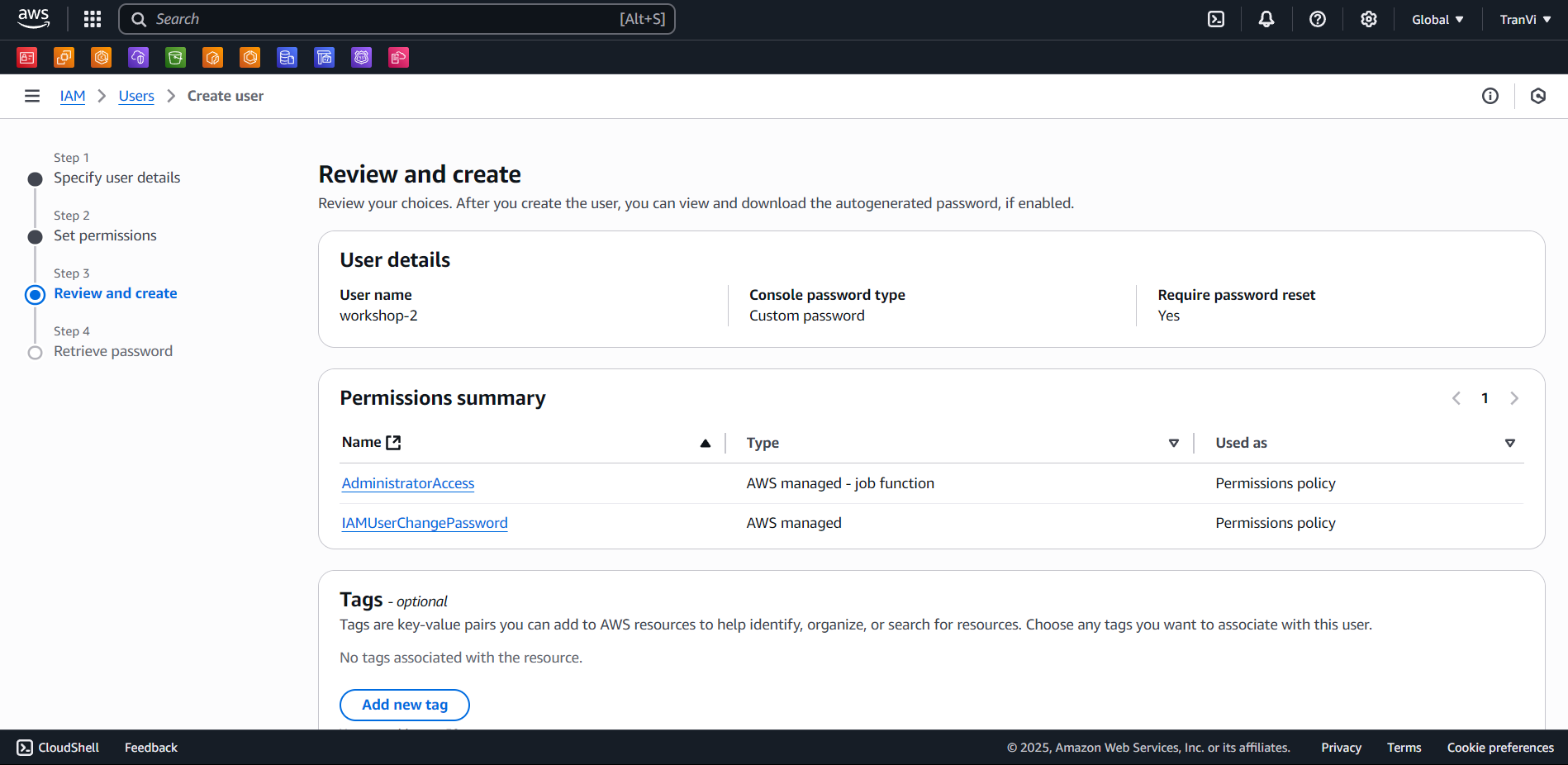
After clicking Next, go to the Review section and click Create to create the User.
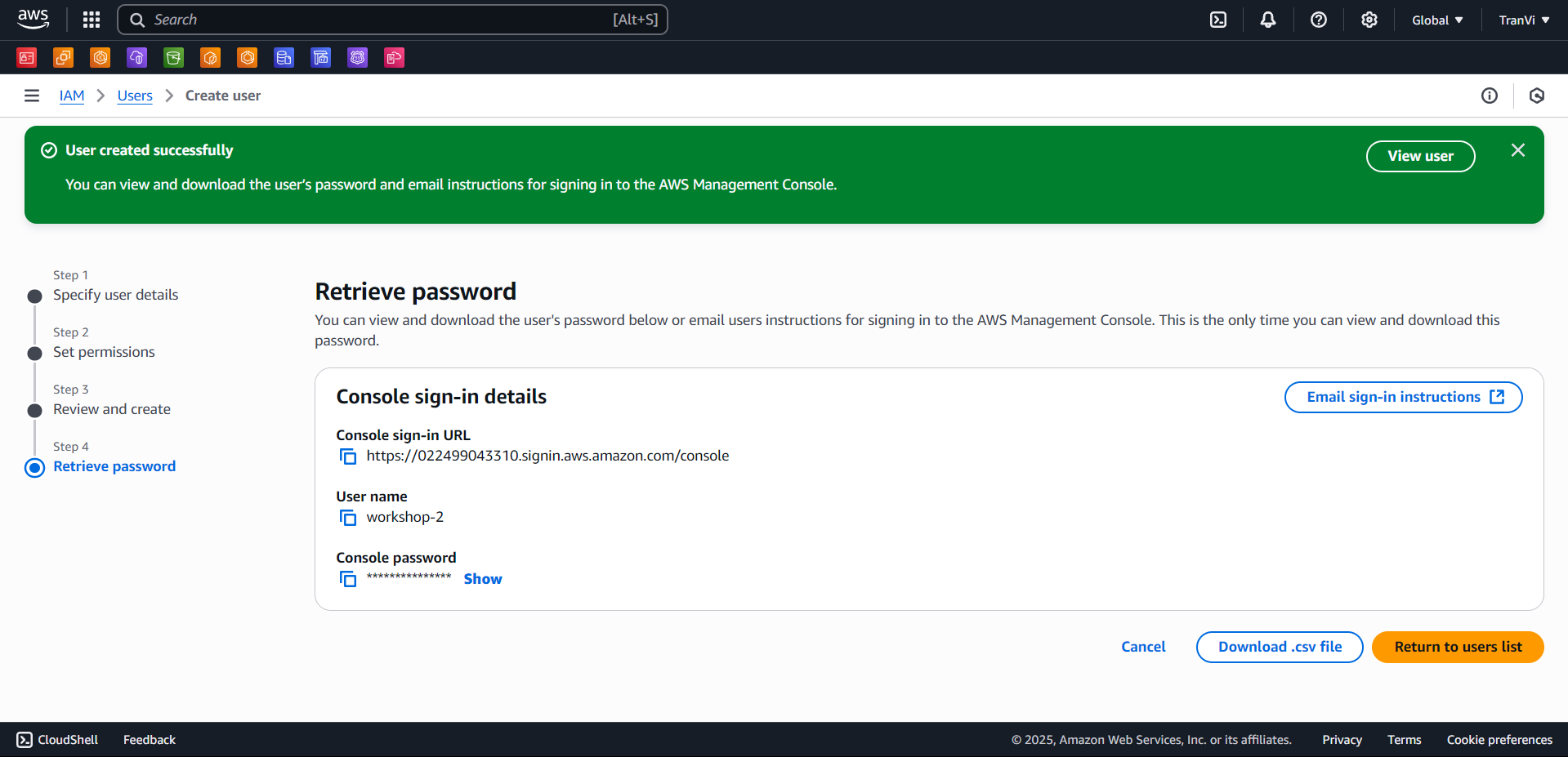
Thus the User has been created successfully.
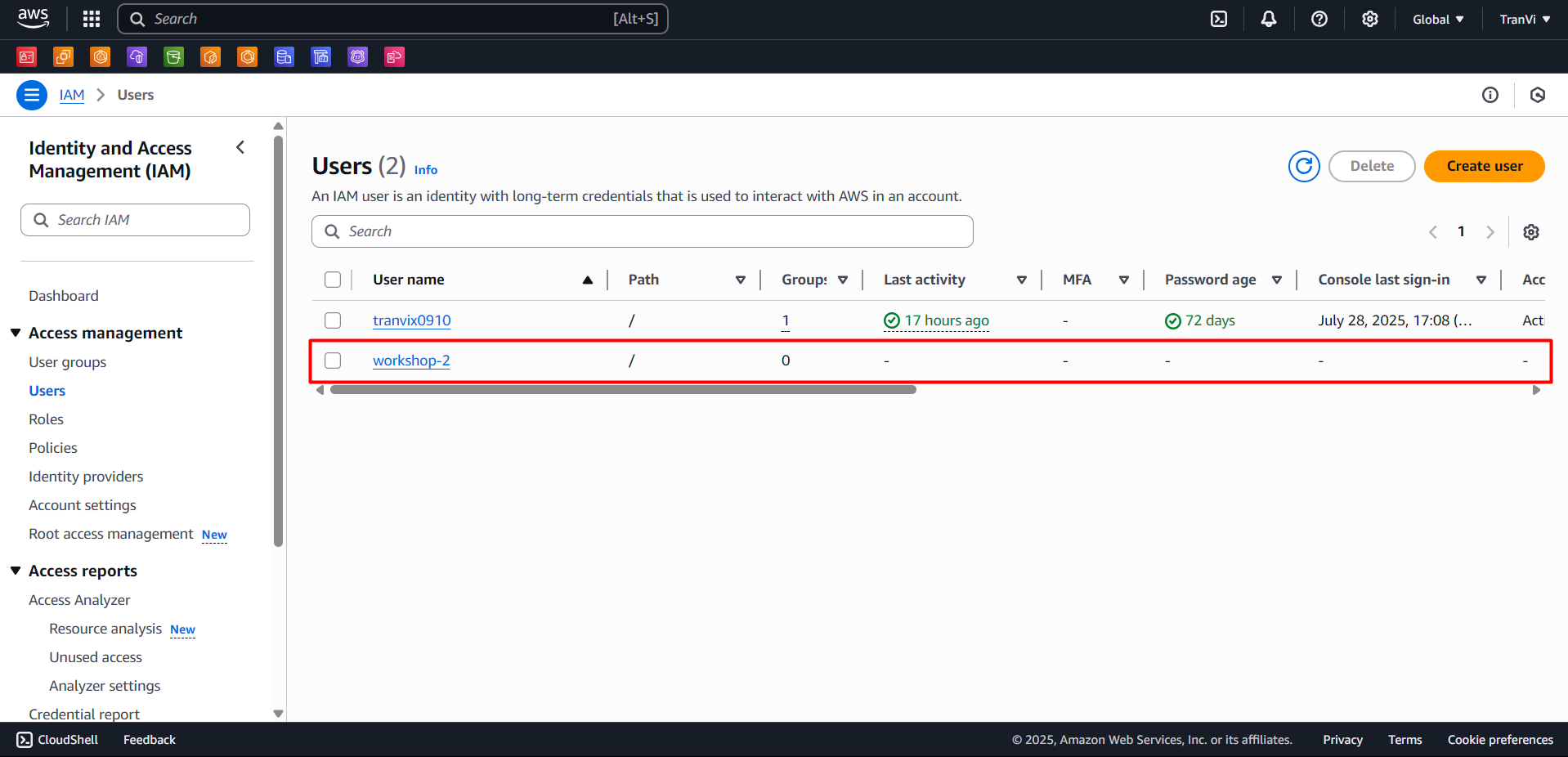
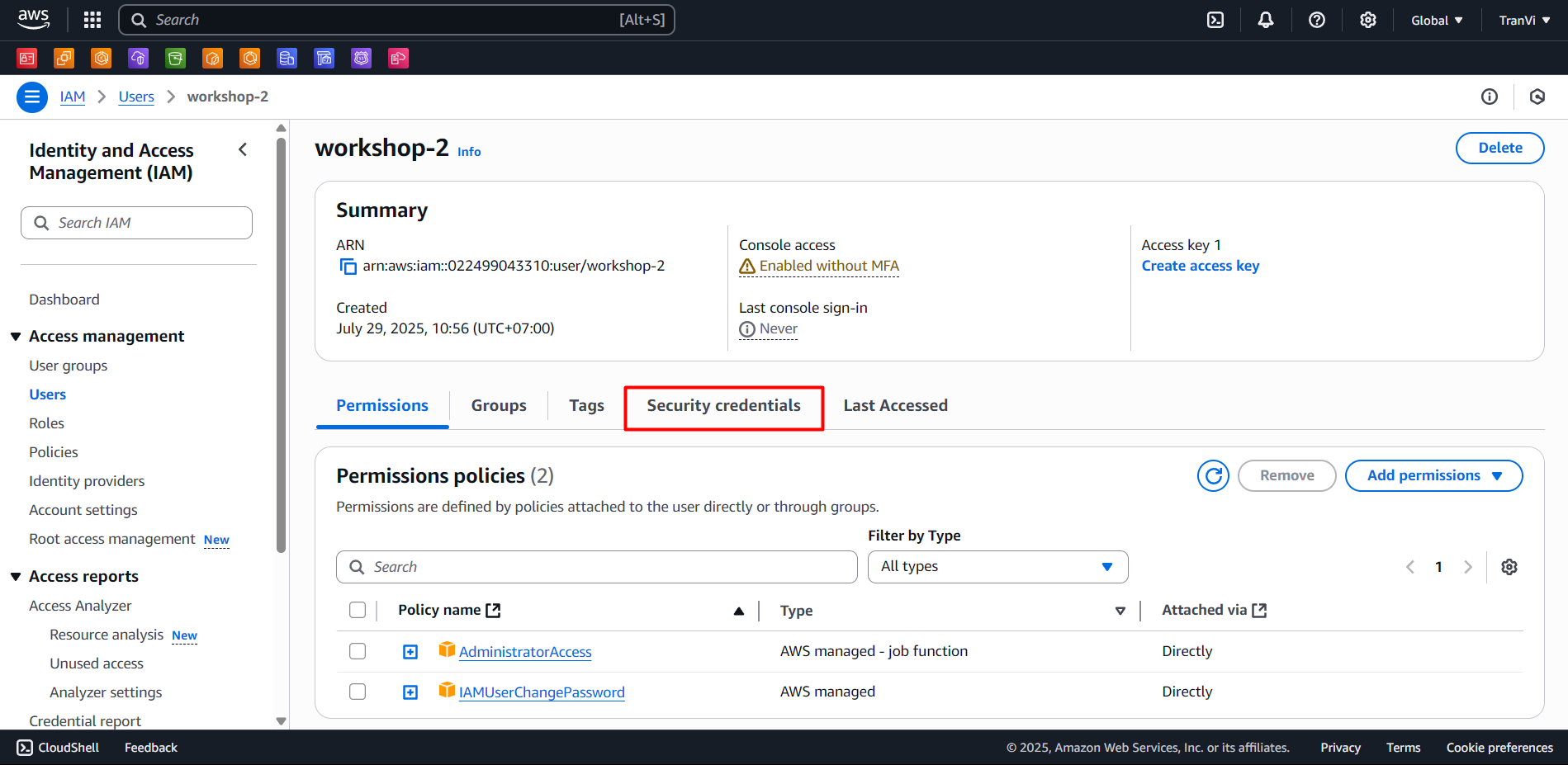
To be able to use AWS CLI, we need to create Access Key and Secret Key, access the newly created User.
Select the Security Credentials section and click the Create access key button.
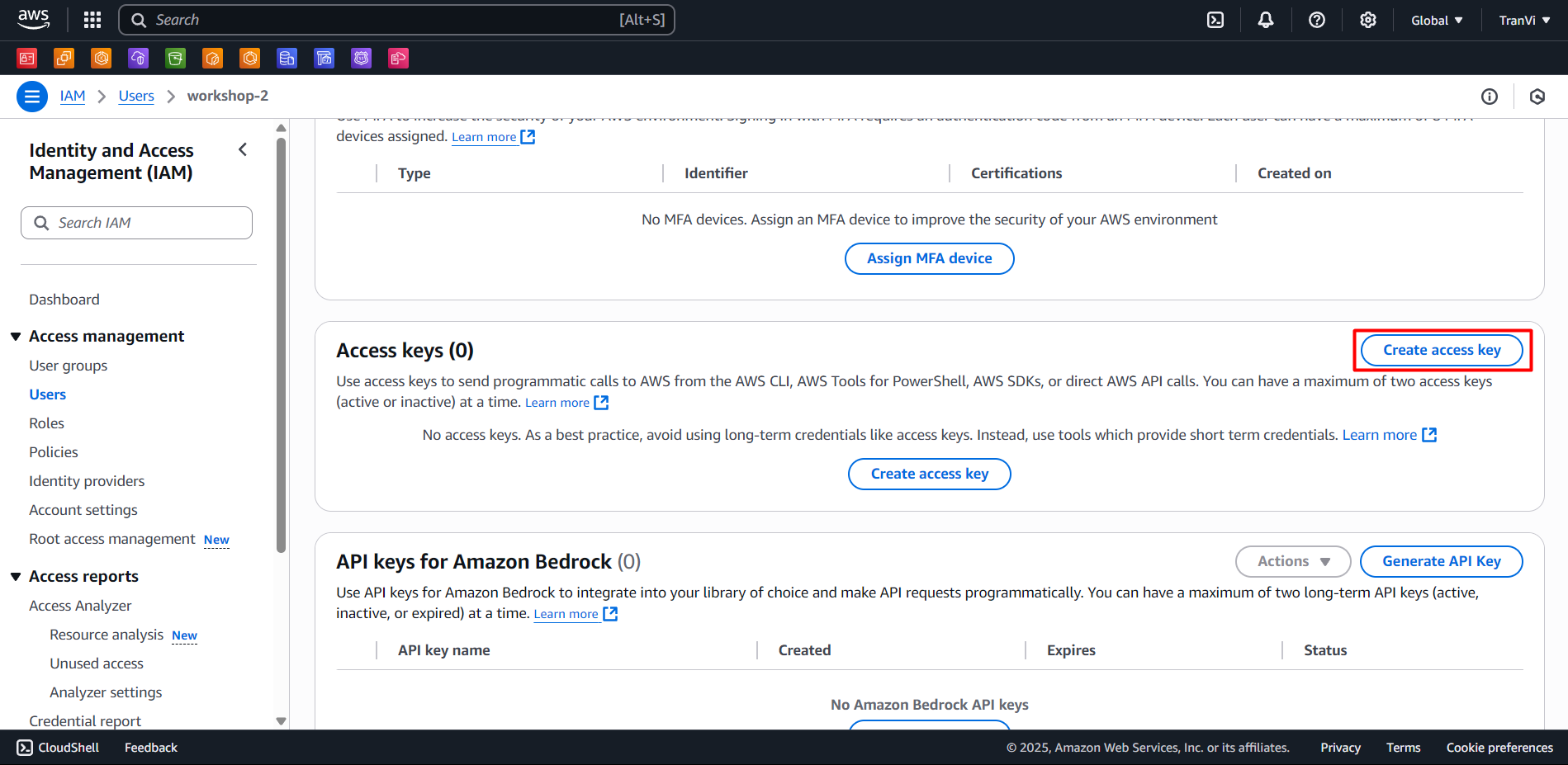
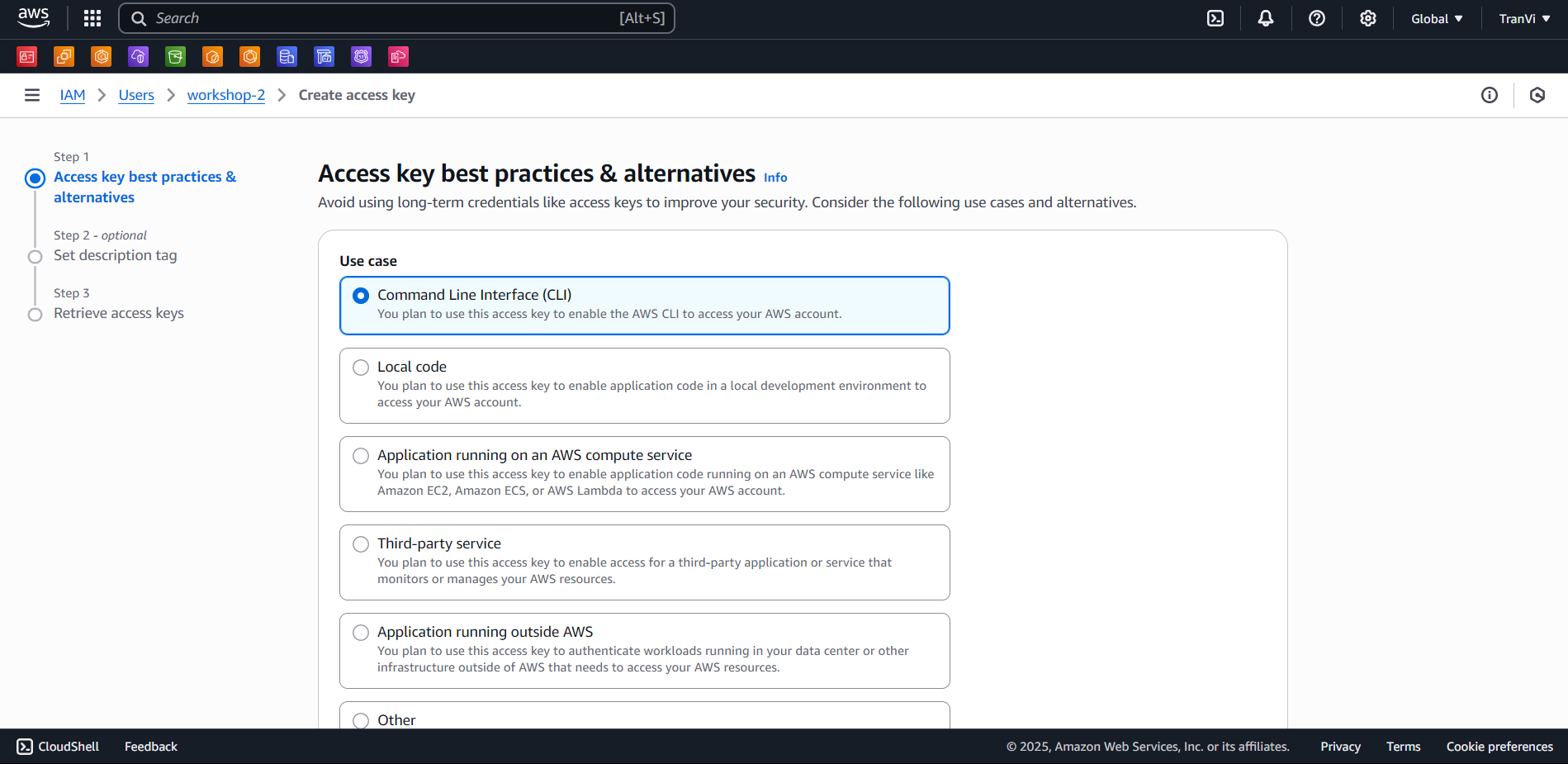
Select Command line interface and Next.
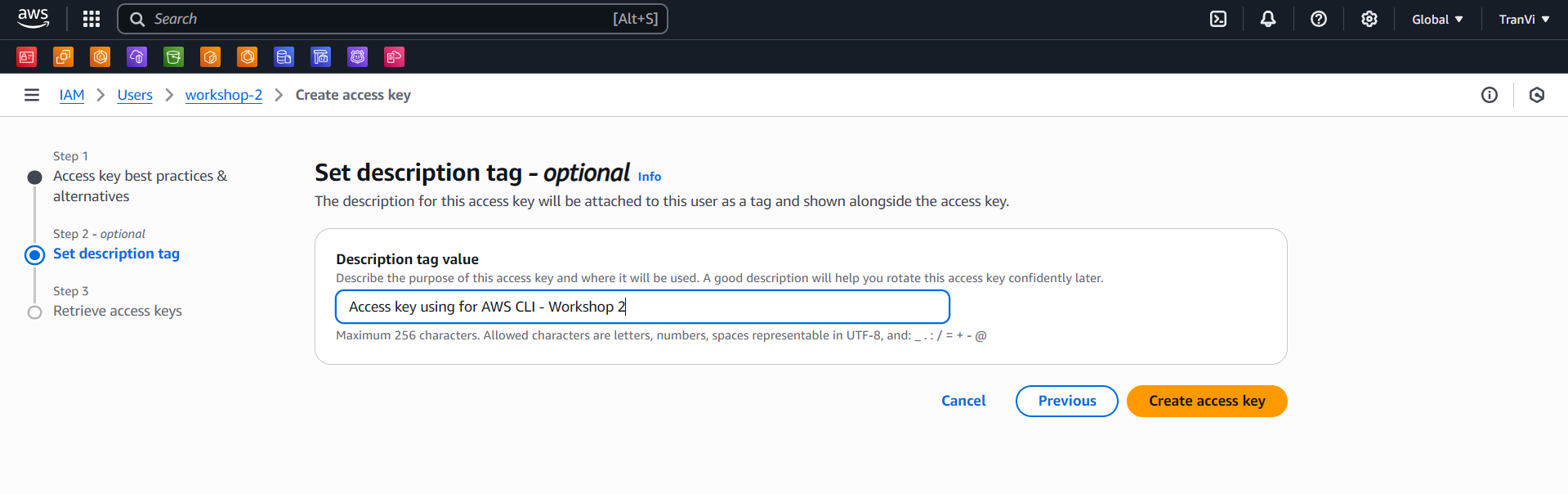
Click Create access key to create Access Key and Secret Key.
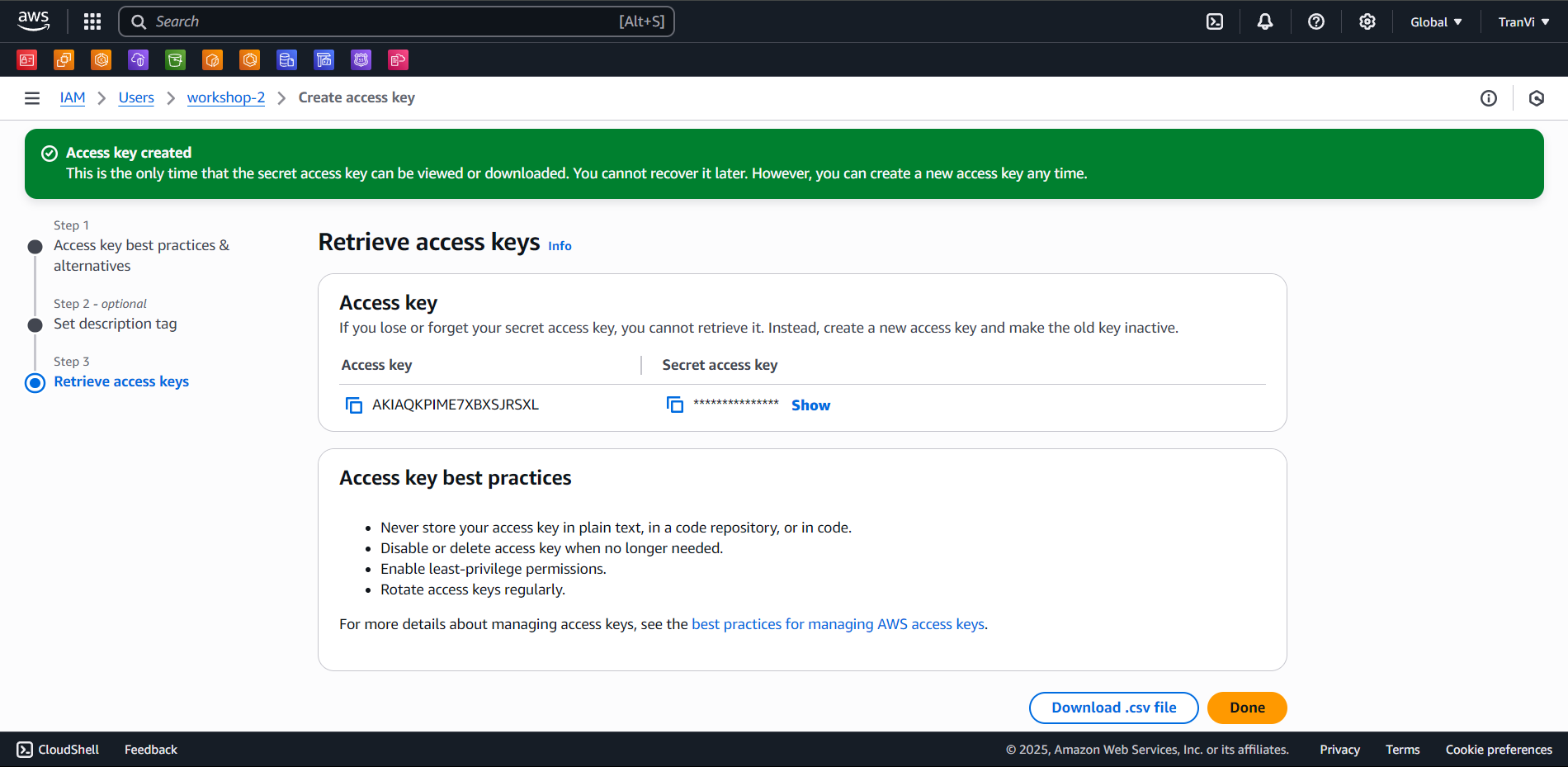
You can download the file to save or copy Access Key and Secret Key to use.
Next, we will configure AWS CLI with Access Key and Secret Key.
aws configure
Then enter Access Key and Secret Key, default region is ap-southeast-1 and default output is json.
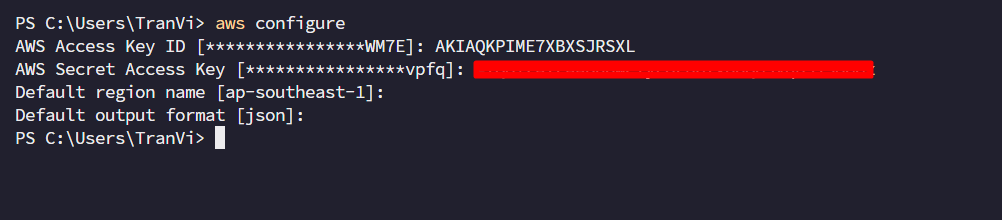
Next, we will check if AWS CLI configuration is successful or not.
aws sts get-caller-identity
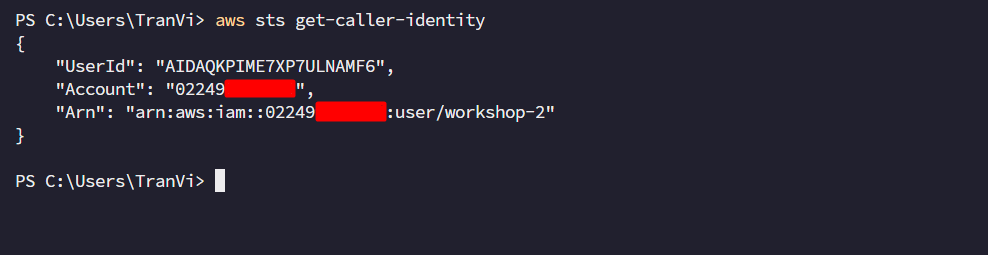
Thus we have successfully configured AWS CLI.
Check if eksctl has been configured successfully or not.
eksctl get cluster

Thus we have successfully configured eksctl.
Install kubectl
We will install kubectl to manage EKS Cluster.
Linux
curl -LO "https://dl.k8s.io/release/$(curl -L -s https://dl.k8s.io/release/stable.txt)/bin/linux/amd64/kubectl"

sudo install -o root -g root -m 0755 kubectl /usr/local/bin/kubectl

kubectl version --client
MacOS
brew install kubectl

kubectl version --client
Windows
choco install kubectl

kubectl version --client
After successful installation, we can check with the command:
kubectl version --client
